Ragdoll Destruction Playground Controls
Honest control guidance for a sandbox that is still early �?trust the in-game keybind UI when labels differ from this page.
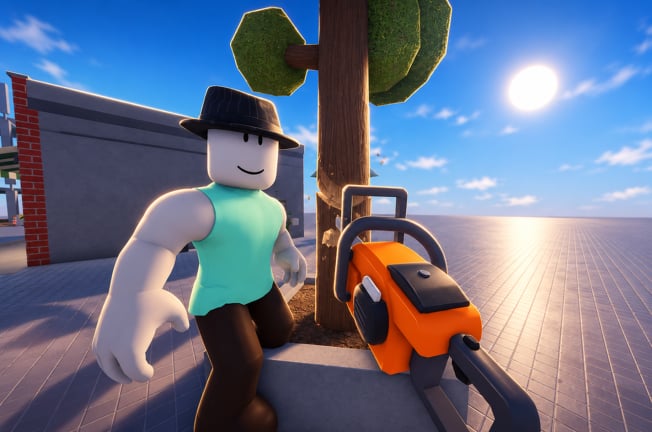
Ragdoll Destruction Playground is a Roblox physics sandbox, not a ranked shooter with a frozen hotkey sheet. Harpax Dev has shipped slow motion, weapons, explosives, props, unlockables, NPC behaviours, and map reset while the experience is still early. Official key lists are not always published in the same detail as older 2D ragdoll games, so this guide focuses on what you should expect to control, how desktop and mobile usually map those actions, and how to verify binds in-game instead of memorizing a wiki table that might go stale overnight.
If you are brand new, finish the Getting Started loop first, then return here to tighten muscle memory.
What you need to control in this sandbox
Regardless of exact key names, a productive session needs these verbs:
- Move and look �?reach props, circle ragdolls, and line up shots without walking into your own blast.
- Select tools �?switch between minigun, chainsaw, explosives, and other unlockable props as they appear.
- Primary use / fire �?spray, swing, throw, or detonate depending on the equipped tool.
- Aim or direction �?point the camera (and any crosshair the build uses) at the target you want to wreck.
- Grab or interact (when available) �?pick up or manipulate props and ragdolls if the current build exposes a grab action.
- Slow motion �?toggle or hold a time-scale control for cinematic beats; see Slow Motion.
- Map reset �?clear debris and start a fresh scene; see Map Reset.
- Menus �?open unlock, shop, codes, or settings panels without leaving the experience.
Write those verbs down once. When a patch renames a button, you still know which verb you are hunting for.
Desktop expectations (keyboard and mouse)
On PC, Roblox sandboxes commonly map:
- WASD for movement and mouse look for aiming.
- Left mouse for primary fire / use on the equipped tool.
- Right mouse or a modifier for alternate use, aim-down, or secondary tool behaviour when the weapon supports it.
- Number keys or a wheel / hotbar for switching weapons and props.
- A dedicated key or UI button for slow motion.
- A dedicated key or UI button for resetting the map.
- Esc for Roblox menu / leave, separate from in-experience panels.
Treat that list as a pattern, not a guarantee. Some builds put reset and slow motion only on on-screen buttons. Others bind them to letter keys. After every update, open the in-game keybind or controls panel (often under Settings, or via a help / controls button on the HUD) and confirm what is actually bound. If the game shows an on-screen prompt the first time you hover a tool, read it �?that prompt is more authoritative than any external guide.
Practical PC habits that always help:
- Lower mouse sensitivity slightly when practicing explosives so throws land where you intend.
- Strafe while firing the minigun so you learn spray while moving, not only while standing still.
- Step backward before detonations; camera shake and debris are easier to read when you are not inside the blast.
- Bind or pin slow motion somewhere you can hit mid-combo without opening a menu.
Mobile and touch expectations
On phones and tablets you usually get virtual joysticks, a look drag region, and large on-screen buttons for fire, jump, and experience-specific actions. For this sandbox, expect:
- A movement stick plus camera drag.
- A fire / use button that changes icon with the equipped tool.
- Extra HUD buttons for slow motion and map reset if those are not buried in a menu.
- A tool tray or arrows to cycle weapons and props.
Touch accuracy is harder for precise throws. Compensate by standing closer for chainsaw work, using slow motion before big detonations, and resetting more often when mis-taps litter the floor with half-finished setups. If buttons overlap or feel tiny, check Roblox touch UI scaling in client settings, then re-enter the experience.
Aim, fire, and tool switching workflow
A clean control loop looks like this:
- Select the tool you want from the hotbar or tray.
- Confirm the camera is pointed at the intended ragdoll or prop cluster.
- Use primary fire in short tests �?a burst from the minigun, a short chainsaw contact, or one explosive �?before holding inputs forever.
- Toggle slow motion for the climax if you care about the reaction.
- Reset the map when debris blocks the next test.
That loop matches how Weapons and Explosives recommends learning combos: one variable at a time, then combine.
Slow motion and reset as first-class controls
Many players treat slow motion and reset as optional extras. In Ragdoll Destruction Playground they are core verbs. Slow motion lets you see fire spread and ragdoll separation; reset keeps the playground readable. Find those controls in the first minute of every patch, the same way you find the fire button. If either control is missing from the HUD after an update, check menus before assuming it was removed �?UI rearrangements are common in early access. Track input-related notes on the Updates Hub.
Honesty checklist: when the wiki and the game disagree
- Prefer the in-game keybind / controls UI over any static table.
- Prefer on-screen button labels over remembered keys from last week.
- Prefer patch notes after an update that mentions input or UI changes.
- Do not copy key lists from unrelated ragdoll games. Those titles use different creators and different binds.
If you record content, flash the controls panel at the start of a video so viewers know your bind set. Community clips discussed around Players often assume PC defaults that mobile players do not share.
Practice drills (about ten minutes)
- Strafe drill �?circle a ragdoll while keeping it framed.
- Swap drill �?move between two tools without losing camera focus.
- Slow-mo drill �?enable slow motion within a beat of a detonation.
- Reset drill �?wreck a small prop cluster, reset, repeat until the control is muscle memory.
Accessibility and comfort tips
Play seated with a stable framerate when testing heavy explosions. If motion comfort is an issue, avoid rapid camera spins during slow motion and take breaks between big resets. Remap conflicting keys through Roblox or the experience settings when possible. Keep the Guides Hub nearby for mechanic pages once the binds feel natural. Optional third-party helpers listed on Scripts are not required to learn vanilla inputs.
Mastering controls here is less about memorizing letters and more about owning the verbs: move, select, fire, slow, reset. Once those are automatic, every unlockable weapon becomes easier to evaluate �?and every map reset feels like the start of a new experiment instead of a chore. Compare tool feel later on the Tier List Hub or Weapons Tier List once your hands already know the basics. After arsenal patches such as the Minigun + Chainsaw Update, re-check binds before you assume old muscle memory still matches the HUD.
Frequently Asked Questions
Quick answers to the most common questions.
Where is the official keybind list?
Harpax Dev does not always publish a full public key sheet. Open the in-game settings or controls UI after each update and treat that screen as the source of truth.
Do PC and mobile use the same actions?
Yes for the verbs (move, fire, slow motion, reset), but the inputs differ: keyboard and mouse versus on-screen sticks and buttons.
I cannot find map reset. What should I do?
Scan the HUD and menus for reset, clear, or restart map wording. If it moved after a patch, check the Updates Hub and any on-screen tips.
Should I learn controls before weapons?
Learn movement, fire, slow motion, and reset first, then study Weapons and Explosives for tool-specific timing.
Can I reuse Ragdoll Playground (2D) keybinds here?
No. That is a different game. Do not assume G, R, or other binds from other ragdoll titles apply to Ragdoll Destruction Playground.